Arduino LED Traffic Light System Project for Beginners
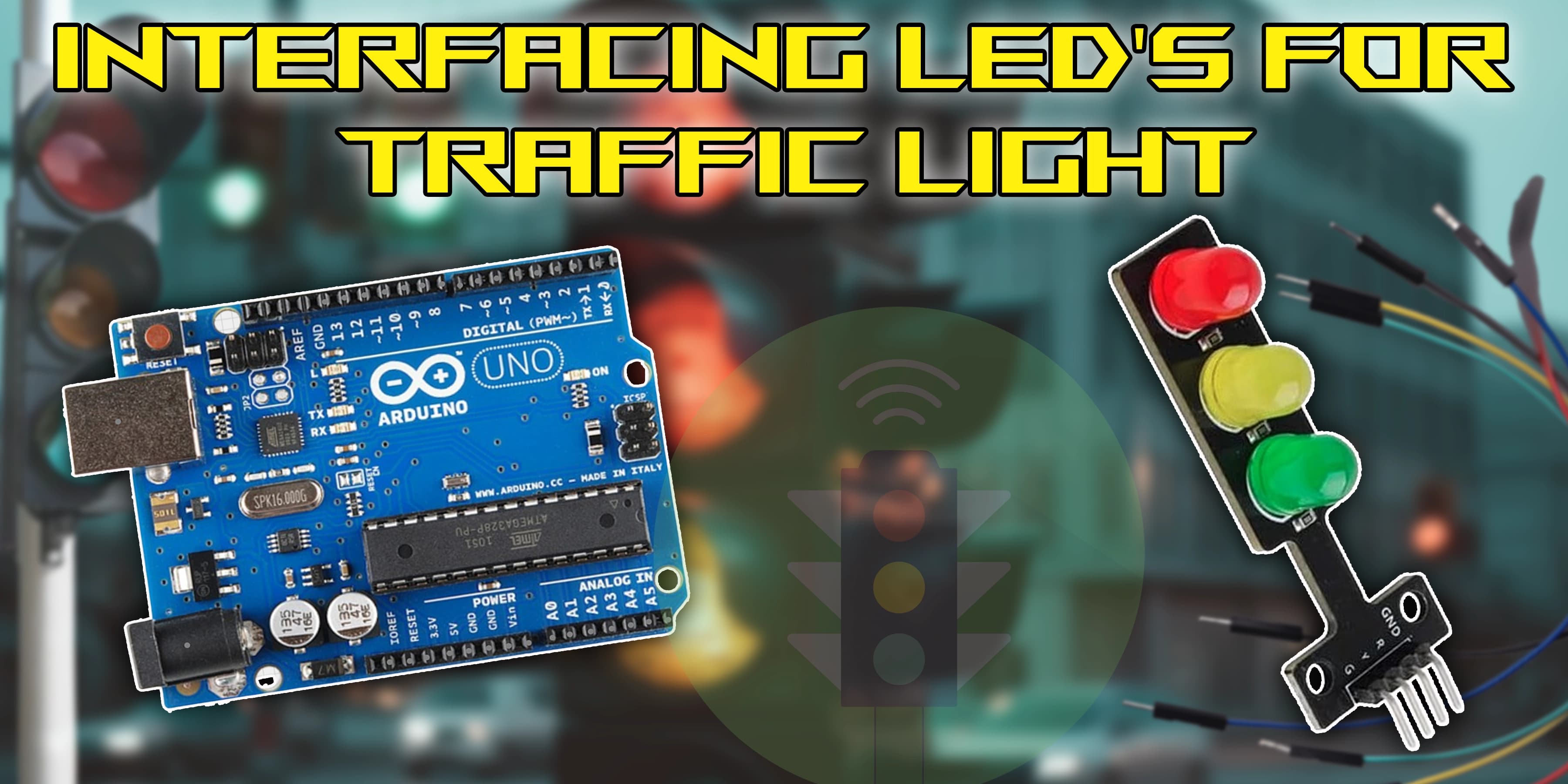
Building a traffic signal system with LEDs is a fun and educational project that demonstrates actual traffic control. Simulating red, yellow, and green lights using LEDs attached to a microcontroller teaches the way to adjust signals, timing, and program logic for efficient traffic monitoring systems. The use of LEDs to build a traffic light system allows for more understanding of electronics and programming fundamentals. Connecting LEDs to a microcontroller allows you to control light patterns, change timings, and simulate genuine traffic signals. This interactive project is great for studying automation and smart city concepts since it enhances understanding of signal control.
Overview of this Experiment
In this project, a microcontroller and LEDs are used to create a small traffic light system. Through preprogrammed sequences, the LEDs will govern traffic flow by representing red, yellow, and green lights. It provides practical experience with signal management, timing, and fundamental electronics automation ideas by mimicking real-world traffic control.
The system regulates LED signals using a microcontroller with pre-programmed logic. It may be customised for smart traffic systems by adding sensors or timers to enhance functionality. This project is ideal for learning the principles of programming, hardware control, and the concepts that underpin modern traffic management solutions.

Pin Diagram

Circuit Diagram

Steps
1. Place the Arduino Uno on the breadboard.
2. Connect the ground (GND) pin of the Arduino to the negative rail (-) on the breadboard.
3. Grab your red LED – Connect its long leg (the anode) to digital pin 2 on your Arduino, but don’t forget the 220-ohm resistor! Think of it as the LED’s personal bodyguard, keeping it safe from an electrical overload meltdown!
4. Hook up the yellow LED’s long leg (anode) to pin 3 with a 220-ohm resistor—safety first, no LED barbeque!
5. Using a 220-ohm resistor, connect the green LED's long leg (anode) to digital pin 4 on the Arduino.
6. Attach the shorter leg (cathode) of each LED to the ground rail (-) on the breadboard.
Code
1
2int A=3;
3int B=4;
4int C=5;
5int D=6;
6int E=7;
7int F=8;
8int G=9;
9int X=10;
10int Y=11;
11int Z=12;
12void setup()
13 {
14          pinMode(A, OUTPUT);
15          pinMode(B, OUTPUT);
16          pinMode(C, OUTPUT);
17          pinMode(D, OUTPUT);
18          pinMode(E, OUTPUT);
19          pinMode(F, OUTPUT);
20          pinMode(G, OUTPUT);
21          pinMode(X, OUTPUT);
22          pinMode(Y, OUTPUT);
23          pinMode(Z, OUTPUT);
24          }
25void loop()
26{
27
28          digitalWrite(A, HIGH);
29          digitalWrite(B ,HIGH);
30          digitalWrite(C, HIGH);
31          digitalWrite(D, HIGH);
32          digitalWrite(E, HIGH);
33          digitalWrite(F, HIGH);
34          digitalWrite(G, LOW);
35          delay(1000);
36          digitalWrite(A, LOW);
37           digitalWrite(B ,HIGH);
38           digitalWrite(C, HIGH);
39           digitalWrite(D, LOW);
40           digitalWrite(E, LOW);
41           digitalWrite(F, LOW);
42           digitalWrite(G, LOW);
43           delay(1000);
44           digitalWrite(A, HIGH);
45           digitalWrite(B ,HIGH);
46           digitalWrite(C, LOW);
47           digitalWrite(D, HIGH);
48           digitalWrite(E, HIGH);
49           digitalWrite(F, LOW);
50           digitalWrite(G, HIGH);
51           delay(1000);
52           digitalWrite(A, HIGH);
53           digitalWrite(B ,HIGH);
54           digitalWrite(C, HIGH);
55           digitalWrite(D, HIGH);
56           digitalWrite(E, LOW);
57           digitalWrite(F, LOW);
58           digitalWrite(G, HIGH);
59           delay(1000);
60           digitalWrite(A, LOW);
61           digitalWrite(B ,HIGH);
62           digitalWrite(C, HIGH);
63           digitalWrite(D, LOW);
64           digitalWrite(E, LOW);
65           digitalWrite(F, HIGH);
66           digitalWrite(G,HIGH);
67           delay(1000);
68           digitalWrite(A, HIGH);
69           digitalWrite(B ,LOW);
70           digitalWrite(C, HIGH);
71           digitalWrite(D, HIGH);
72           digitalWrite(E, LOW);
73           digitalWrite(F, HIGH);
74           digitalWrite(G, HIGH);
75           delay(1000);
76           digitalWrite(A, LOW);
77           digitalWrite(B ,LOW);
78           digitalWrite(C, HIGH);
79           digitalWrite(D, HIGH);
80           digitalWrite(E, HIGH);
81           digitalWrite(F, HIGH);
82           digitalWrite(G, HIGH);
83           delay(1000);
84           digitalWrite(A, HIGH);
85           digitalWrite(B ,HIGH);
86           digitalWrite(C, HIGH);
87           digitalWrite(D, LOW);
88           digitalWrite(E, LOW);
89           digitalWrite(F, LOW);
90           digitalWrite(G, LOW);
91           delay(1000);
92           digitalWrite(A, HIGH);
93           digitalWrite(B ,HIGH);
94           digitalWrite(C, HIGH);
95           digitalWrite(D, HIGH);
96           digitalWrite(E, HIGH);
97           digitalWrite(F, HIGH);
98           digitalWrite(G, HIGH);
99           delay(1000);
100           digitalWrite(A, HIGH);
101           digitalWrite(B ,HIGH);
102           digitalWrite(C, HIGH);
103           digitalWrite(D, LOW);
104           digitalWrite(E, LOW);
105           digitalWrite(F, HIGH);
106           digitalWrite(G, HIGH);
107           delay(1000);
108
109           }
110
Conclusion
Using hardware and software, the interface procedure connects traffic lights to a control system. Lights are adjusted in response to traffic flow detected by sensors. In response to traffic patterns, sophisticated algorithms can dynamically adjust timing or prioritize directions. Congestion is lessened, transportation is made easier, and safety is improved by effective interfaces.