How to Control LED using Ultrasonic Sensor HC-SR04 | Arduino Tutorial
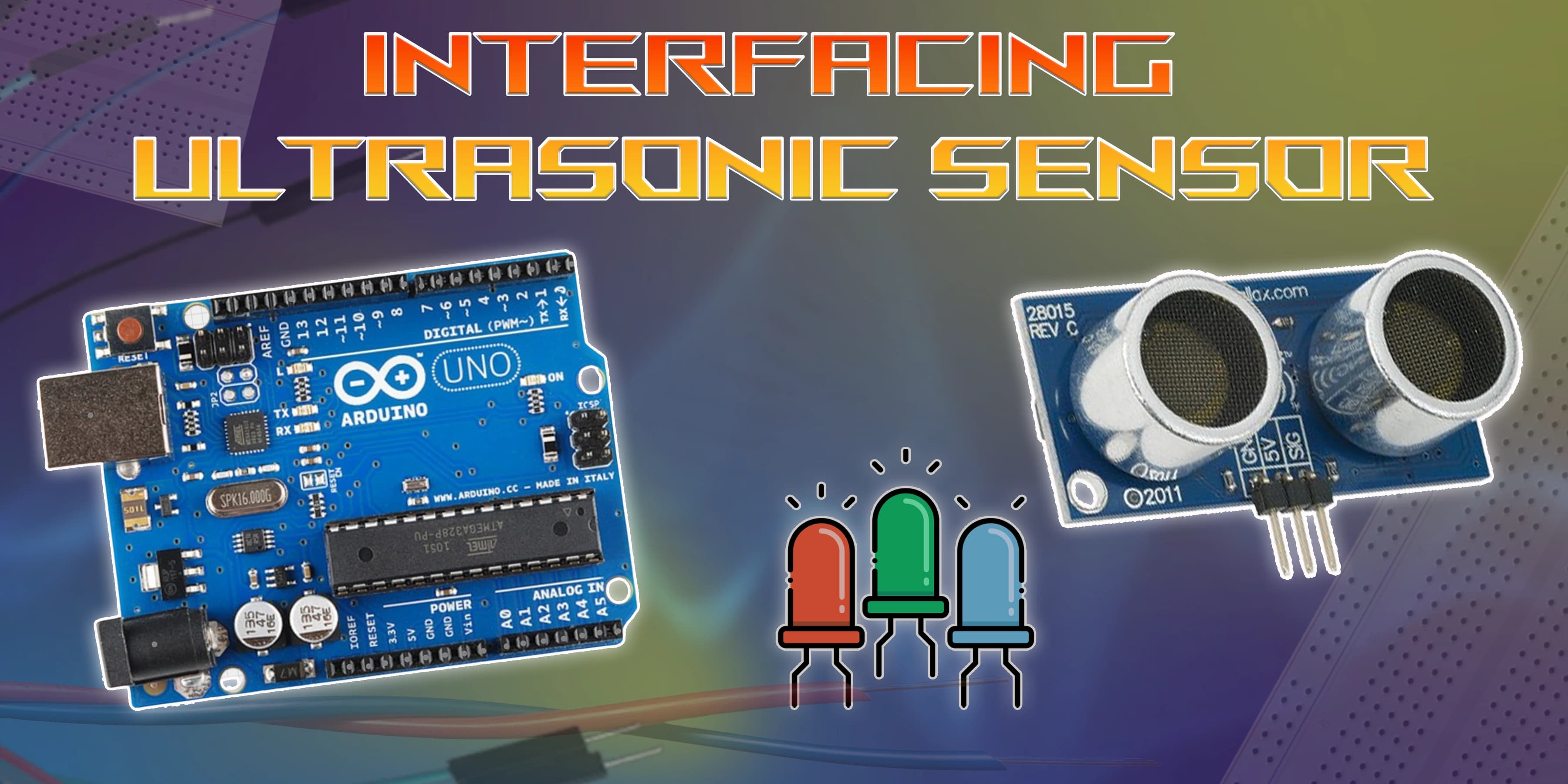
Have you ever noticed how your Arduino, like a small robot with superpowers, can "sense" its surroundings? Let's attach an ultrasonic sensor! To measure distance, it will produce waves. Guess what? Depending on exactly how close or far anything is, your LED will illuminate! Are you ready to take a look at your Arduino now? If the Arduino is the project's main character, and you are the inventor! It will be able to "see" the world ahead thanks to the ultrasonic sensor, and the LED will function as a signal, blinking or lighting up in response to what it detects. Do you want to build an intelligent system that can adapt to its environment? Let's get started.
Overview of this Experiment
An ultrasonic sensor detects how long it takes vibrations to return after impacting an object. This approach is useful for applications such as obstacle identification and distance measuring since it assists in estimating the distance between the sensor and the object. It's similar to utilising audio to give your Arduino vision!
By integrating an LED, you may create visual feedback based on the sensor values. For example, if the sensor senses something nearby, the LED may flicker or light up. The combination of an ultrasonic sensor and an LED enables a wide range of interactive and intelligent applications, from simple distance signals to more complex automation systems.

Pin Diagram

Circuit Diagram

Steps
1. Attach pins 9 and 10 for triggering and echoing, and connect VCC and GND to pins 5 and GND on the Arduino.
2. Use a 220-ohm resistor to connect the LED's anode to pin 13 and its cathode to GND.
3. When an object is detected, program the Arduino to read the ultrasonic sensor and switch on the LED.
4. When an object is within range, the LED should illuminate after uploading the code and testing. When an object is within range, the LED should illuminate after uploading the code and testing.
Code
1
2// Define pin connections
3const int trigPin = 9;
4const int echoPin = 10;
5// Define variables long duration; int distance;
6void setup()
7{
8         // Initialize serial communication Serial.begin(9600);
9        // Define pin modes
10        pinMode(trigPin, OUTPUT);
11        pinMode(echoPin, INPUT);
12}
13void loop()
14{
15         digitalWrite(trigPin, LOW); delayMicroseconds(2);
16
17         digitalWrite(trigPin, HIGH);
18         delayMicroseconds(10);
19         digitalWrite(trigPin, LOW);
20          // Measure the duration of the echo pulse
21         duration = pulse In(echo Pin, HIGH);
22
23          // Calculate distance in cm (speed of sound is 343 m/s)
24        distance = duration * 0.034 / 2;
25       // Print distance to the serial monitor Serial.print("Distance: ");
26        Serial.print(distance); Serial.println(" cm");
27       // Delay before next reading delay(1000);
28}
29
30
31
32
Conclusion
You have successfully interfaced an Arduino board with an LED and an ultrasonic sensor by following these procedures. When an object is detected within a specific range by the ultrasonic sensor, the LED is activated appropriately. This project can be used as a starting point for more intricate ones and shows how sensor integration is applied in a basic way. Its capability can be expanded for a variety of applications with additional programming and experimenting. Have fun playing around with your Arduino! You have successfully interfaced an Arduino board with an LED and an ultrasonic sensor by following these procedures. When an object is detected within a specific range by the ultrasonic sensor, the LED is activated appropriately. This project can be used as a starting point for more intricate ones and shows how sensor integration is applied in a basic way. Its capability can be expanded for a variety of applications with additional programming and experimenting. Have fun playing around with your Arduino!